How to copy photos from an iPhone to a NAS
PicFrom for iPhone copies your original photos and videos to a shared folder on your NAS over home Wi‑Fi. No computer and no cloud are involved, nothing is deleted from the iPhone, and next time only the new photos are copied.
What you'll need
- An iPhone with iOS 16 or later and the free PicFrom app.
- A NAS with a shared folder over SMB: Synology, QNAP, a router with a drive, or a Windows or Mac shared folder.
- The NAS address (for example 192.168.1.10) and a user name and password that can write to the shared folder.
- The iPhone on the same Wi‑Fi network as the NAS.
Where the photos go
PicFrom creates a PicFrom folder in the shared folder with a separate archive for this iPhone. Inside, photos and videos sit in folders named Year / Year-Month / Year-Month-Day, as ordinary files you can open from any computer on the network.
How to copy your photos
-
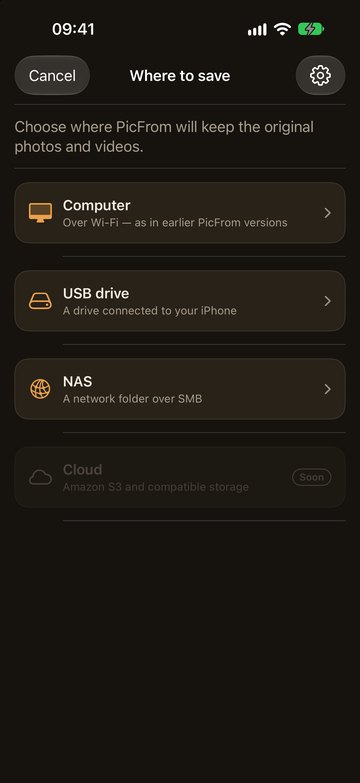
Open PicFrom and tap Where to save, then NAS.
The first time, PicFrom asks for access to your photos and to the local network. Allow both.
-
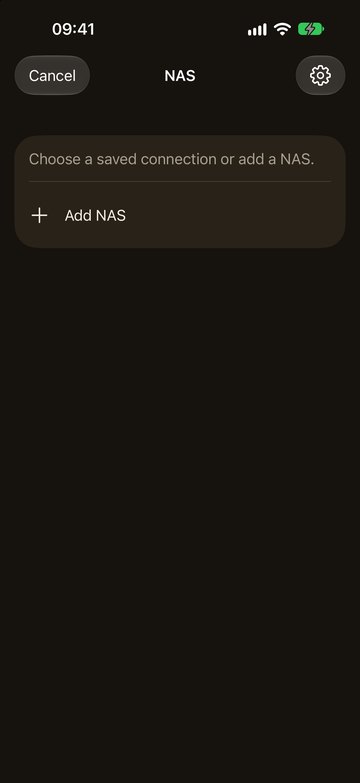
Tap Add NAS.
Saved connections appear in this list, so next time you just tap one.
-
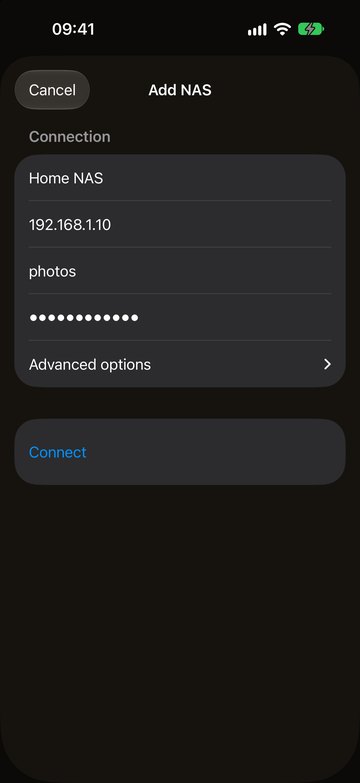
Enter the NAS address, user name and password, then tap Connect.
The name is optional. The password is kept in the iPhone's Keychain.
-
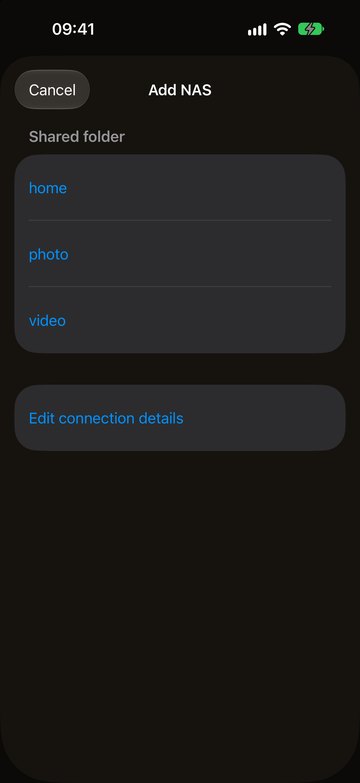
Choose the shared folder for your photos.
If the NAS doesn't list its shared folders, you can type the name yourself.
-
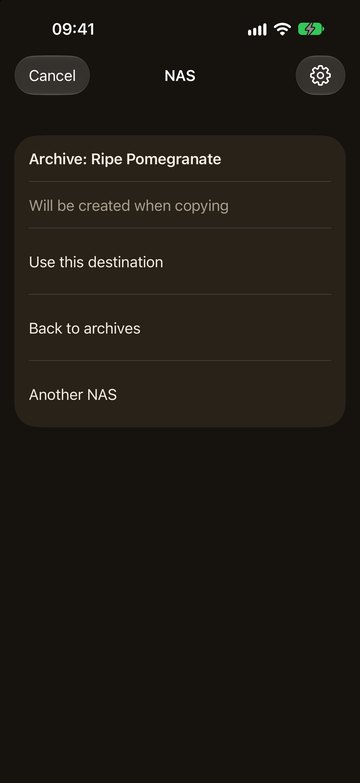
Tap Use this destination.
If the shared folder has no archive yet, PicFrom creates one when the copy starts.
-
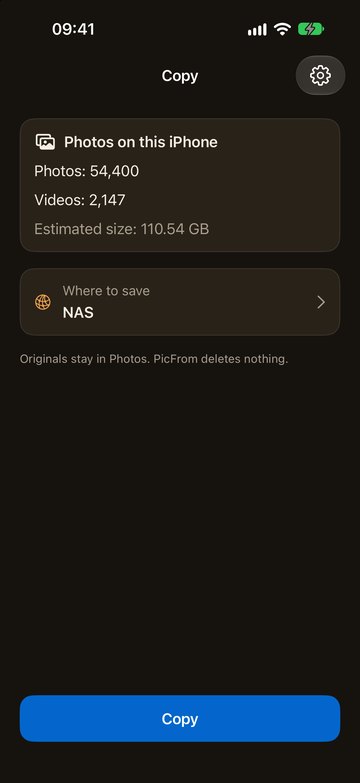
Tap Copy and keep PicFrom open until it finishes.
Before copying, PicFrom checks that the shared folder has enough free space. Keep the iPhone on the charger.
Next time
Open PicFrom at home and tap Copy. It connects to the same NAS and copies only the photos you've taken since.
If PicFrom can't connect
- Check that the iPhone is on your home Wi‑Fi, not mobile data or a guest network.
- On the iPhone, open Settings → PicFrom and turn on Local Network.
- Make sure SMB file sharing is turned on in the NAS settings and the user can write to the shared folder.
- If the password changed, open the saved connection and enter the new one.
- If the Wi‑Fi drops, PicFrom waits and continues from the same spot once the NAS is back.
- Write to us on Telegram or by email, and we'll help.
Privacy
Photos go from the iPhone to your NAS over your own network, with no cloud or servers in between. PicFrom only reads your library. It never deletes or changes anything on the iPhone.